Google My Business made simple. Learn how to claim, verify, and optimise your free listing with 7 clear steps to win more local customers on Search and Maps.
Table of Contents
Your Google My Business Listing Is Often the First Thing a Local Customer Sees
Imagine a person searching for a service near them. They type a few words into Google, and before they open any website, they see a panel with a business name, a phone number, opening hours, photos, and star ratings. That panel is your Google My Business listing, and it can decide whether a customer calls you or calls the competitor shown right below you.
One thing needs to be clear before we begin. Google officially renamed Google My Business to Google Business Profile in November 2021, but most people still search for the old name. In this guide we use Google My Business so that it matches what you type into Google, and we explain how everything works today. You will learn what Google My Business is, how to claim and verify it, and 7 practical steps that help your profile show up in local search and Google Maps.
What Is Google My Business in Simple Words
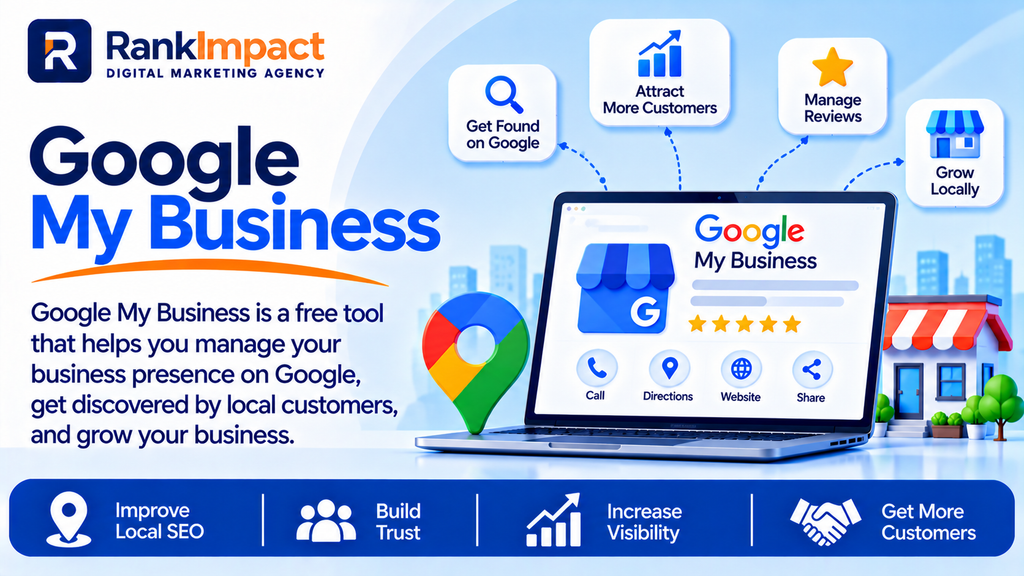
Google My Business is a free tool that lets a business control how it appears on Google Search and Google Maps. When you manage your profile, you decide what customers see about your name, address, phone number, website, opening hours, photos, services, and more.
In 2021 Google announced that it was renaming the service to Google Business Profile and that it would retire the dedicated app in favour of managing profiles directly on Search and Maps. Larger businesses with many locations still use a web dashboard that Google calls Business Profile Manager. Everyday owners, however, simply search for their business or search for my business on Google to open their profile.
So when someone says Google My Business today, they almost always mean the same free business listing that appears on Google Search and Maps.
Why Google My Business Matters for Local Businesses
Local search is full of intent. A person who searches for a nearby service usually wants to act soon, which means a well managed profile can bring calls, direction requests, and website visits from people who are ready to buy.
There are 3 clear benefits.
The first benefit is visibility. Your profile can appear in local results and on the map, which puts your business in front of people at the moment they search.
The second benefit is trust. Photos, reviews, and accurate details help a stranger feel comfortable choosing your business.
The third benefit is control. Without a claimed profile, Google may use information from other sources such as user reports and licensed content. A verified Google My Business profile lets you correct mistakes and keep details fresh.
Who Can Use Google My Business
Google My Business is designed for businesses that meet customers in person or travel to serve customers in a service area. This includes shops, restaurants, clinics, salons, repair services, agencies with an office, coworking spaces, and local service providers.
A purely online business with no real location or service area is usually not eligible for a local listing, and trying to force one can lead to a suspended profile. If you run a SaaS company with a real office that customers visit, or you offer in person services such as IT support or training, you may qualify. Always read Google eligibility and representation guidelines before you create a profile.
Step 1 Find or Create Your Google My Business Profile
Start by searching for your business name and city on Google. If your business is already on Google, you will see an option to claim it. If it is not there, you can add it.
Use the same Google account that you want to use for management, and ideally use a business email that you control. Enter your business name exactly as it appears in real life, choose the correct address, and mark whether you have a storefront or serve customers at their location.
Be careful with the details at this stage. Fixing a wrong address or name later can be slow, so take a few extra minutes to enter everything correctly.
Step 2 Verify Your Google My Business Profile
Verification proves that you manage the real business. Google says verification methods are chosen automatically and cannot be changed, and the options depend on your business type, public information, region, and support hours.
Depending on your profile, you may see phone or text, email, a video recording, or a live video call. For phone or text, make sure you can answer your business number, because automated phone menus cannot receive the code. For video verification, be at your business and be ready to show your location, your signs, and proof that you manage the place, such as access to employee only areas.
Google notes that some profiles are verified instantly, while others can take up to five working days. Once you are verified, you receive a confirmation email and can start editing your details.
Step 3 Complete Every Important Detail
A complete profile gives Google and customers more reasons to trust you. Fill in these basics carefully.
Use your real business name with no extra keywords. Pick the most accurate primary category, because it tells Google what your business is. Add your full address or service area, a working phone number, your website, and your opening hours. Add special hours for holidays so that customers do not arrive at a closed door.
Write a clear business description in simple words that explains who you help and what you do. Add services or products where they apply. The more accurate information you add to your profile, the easier it is for the right customers to find you.
Step 4 Add Real Photos and Videos
People love to see a place before they visit. Upload clear photos of your storefront, your entrance, your team, your products, and your work. A photo of the outside helps customers find you, and a photo of the inside helps them feel comfortable.
Use real images, not stock pictures. Take photos in good light, keep them sharp, and update them when your space or products change. A few fresh photos each month show that your profile is active and cared for.
Step 5 Collect and Answer Reviews
Reviews are one of the strongest trust signals on your profile. Ask happy customers to share their experience after a successful job or visit. You can send a simple polite message with your review link, but never offer payment or gifts in exchange for reviews, and never write fake reviews. These actions break Google rules and can harm your profile.
Reply to every review, good or bad. Thank people who praise you, and answer criticism calmly with a clear offer to help. Future customers read your replies, so a respectful answer to a bad review can actually build trust. You can manage reviews directly from your profile in Search or from the Business tab in Google Maps.
Step 6 Use Posts Services and Messages
Your profile is not only a static card. Add services or products so customers see what you offer. Share updates such as offers, events, or news so that your profile feels alive.
Google also lets you respond to customer messages and calls through your profile in Search and Maps, and you can set up notifications on your phone. Fast replies make a strong first impression, so decide who in your team is responsible for answering.
Keep your posts short, honest, and useful. A simple update with a clear photo and a clear next step is better than a long promotional paragraph.
Step 7 Check Performance and Keep Improving
Treat your profile like a living asset. Review it every month. Check that your hours, phone number, address, and website are still correct, and read new reviews and messages.
Google offers a Profile Strength tool for verified profiles that guides you toward missing information. Look at how customers find you, what they do after seeing your profile, and which photos or updates get attention. Use these signals to decide what to improve next.
Small steady improvements add up. A business that updates its profile every month usually looks more trustworthy than one that set it up once and forgot it.
How to Manage Your Google My Business Profile Today
Managing your profile is simple once you know where to look. Sign in with the Google account linked to your profile, then search for your business name or search for my business in Google Search. You will see options such as editing your profile, adding photos, reading reviews, and checking messages.
On a phone, open the Google Maps app and tap the Business tab. Google says the Maps app supports most features that were available in the old app, including replying to reviews and customer messages.
If you manage many locations, Business Profile Manager lets you handle several profiles and use bulk tools such as uploading information in a spreadsheet.
Practical Examples of Google My Business in Action
The following examples are illustrative scenarios, not real company results.
A small marketing agency with a city office completes its Google My Business profile, adds team photos, and asks clients for reviews after each project. When local business owners search for marketing help, the agency profile looks complete and trustworthy.
A coworking space uploads bright photos of its desks and meeting rooms, adds opening hours for each day, and posts updates about events. Visitors can see the space before they book a tour.
An IT support company that visits customers sets up a service area instead of showing a public address. It lists its services, answers messages quickly, and replies to every review, which shows that real people stand behind the business.
How Google Decides Which Local Businesses to Show
Google explains that local results are mainly based on 3 factors, which are relevance, distance, and prominence. Relevance means how well your profile matches what the person searched for. Distance means how far your business is from the searcher or from the location named in the search. Prominence means how well known and trusted your business is, which can come from reviews, links, articles, and your general presence online.
You cannot change distance, but you can improve the other two. Complete your categories, services, and description so that relevance is clear. Earn honest reviews and keep your website and profile consistent so that prominence grows over time. This is why local SEO and your Google My Business profile work best as a team, with your website supporting the details that people see on Google.
Storefront or Service Area Which One Should You Choose
Many owners feel confused about this choice, so keep it simple. If customers visit your location, such as a shop, clinic, or office, you have a storefront and your address can be shown. If you travel to customers and do not serve people at your address, you are a service area business and you can hide your address while listing the areas you cover.
Some businesses do both, and Google calls these hybrid businesses. Pick the option that matches how you really work, because honest information protects your profile and helps customers know what to expect.
Common Google My Business Mistakes to Avoid
Stuffing keywords into your business name is a common mistake. Use your real name only, because adding extra words can violate guidelines and risk suspension.
Choosing the wrong category is another problem. Pick the category that best describes your main service, then add secondary categories only if they truly apply.
Do not ignore reviews, and never buy or fake them. Do not leave old hours or an old phone number on your profile. Do not create duplicate profiles for the same location, and do not list a fake address. Keeping your profile honest and consistent is the safest long term strategy.
Frequently Asked Questions About Google My Business
What is Google My Business?
Google My Business is the former name of Google Business Profile, a free tool that lets businesses manage how they appear on Google Search and Google Maps.
Is Google My Business still available?
The name changed to Google Business Profile in 2021, and the old Google My Business app has been retired. You can still manage the same free listing directly in Google Search and Google Maps.
Is Google My Business free?
Yes. Creating and managing a profile is free. You only pay if you choose separate services such as ads.
How do I find my Google My Business profile?
Sign in to the Google account linked to your business, then search for your business name or search for my business on Google. You can also open the Business tab in the Google Maps app.
How long does Google My Business verification take?
Some profiles are verified instantly, while others can take up to five working days, according to Google. Available methods depend on your business and cannot be chosen by you.
Can an online only business use Google My Business?
Usually not. Local listings are meant for businesses with a real location or a service area. Online only businesses should focus on their website and other marketing channels.
How do I get more reviews on Google My Business?
Ask satisfied customers politely after a good experience and share your review link. Never pay for reviews or write fake ones.
Can I manage Google My Business from my phone?
Yes. Use the Google Maps app and open the Business tab to edit details, reply to reviews, and respond to customer messages.
How often should I update Google My Business?
Review it at least once a month, and update it immediately when your hours, phone number, address, or services change.
Does Google My Business help SEO?
A complete and accurate profile can help your business appear in local results and maps, which supports your wider local SEO work. It works best together with a useful website and good reviews.
Final Thoughts on Google My Business
Local customers decide fast, and your profile is often the first impression you make. Google My Business, now called Google Business Profile, gives you a free way to control that impression with accurate details, real photos, honest reviews, and helpful updates.
Follow the 7 steps in this guide. Claim your profile, verify it, complete every detail, add real photos, collect and answer reviews, share useful updates, and review your results every month. With steady care, your Google My Business profile can become one of the most valuable free marketing assets your business owns.
Key Takeaways
Google My Business is now officially called Google Business Profile, and it is free to create and manage.
Small businesses now manage their profile directly in Google Search and the Google Maps app, and the old Google My Business app is no longer available.
You must verify your profile before you can edit it, and Google decides which verification methods you see.
A complete profile with correct details, strong photos, and active review replies gives you the best chance to attract local customers.
Check your profile every month, because wrong hours or a wrong phone number can cost you real customers.